Connect Bank Account to a Budgeting App: 2026 Guide

When you try to budget without real-time data from your bank, you’re always working from memory or outdated spreadsheets. That’s where the decision to connect bank account to a budgeting app changes everything. Instead of guessing where your money went, you see exactly where it went, automatically. This guide walks you through what to prepare before connecting, how to complete the setup securely, what features become available once you’re linked, and how to keep your data accurate and your accounts protected for the long term.
Table of Contents
- Key takeaways
- What you need before connecting your bank account
- How to connect your bank account to a budgeting app
- How bank sync improves your budgeting and financial tracking
- Troubleshooting connection issues and ongoing security
- Verifying data and getting the most from your app
- My honest take on bank-connected budgeting apps
- Manage your finances with values at the center
- FAQ
Key takeaways
| Point | Details |
|---|---|
| Prepare before connecting | Gather your bank login credentials and enable multi-factor authentication before linking any account. |
| Use OAuth-secured apps | Choose apps that connect via Plaid or OAuth flows so your credentials are never shared directly with the app. |
| Bank sync saves real time | Automated transaction imports eliminate manual entry and give you up-to-date spending data daily. |
| Review access regularly | Check connected app permissions through the Plaid Portal and revoke any apps you no longer use. |
| Verify synced data | Always review categorized transactions after syncing to catch errors and keep your budget accurate. |
What you need before connecting your bank account
Most people skip straight to downloading the app and hitting “Connect.” That’s usually where the problems start. Taking ten minutes to prepare properly saves you from login errors, security gaps, and synced data you can’t trust.
Here’s what to have ready before you begin:
- Your bank’s online login credentials (username and password)
- Access to your email or phone for multi-factor authentication codes
- The name of your bank or credit union (some smaller institutions aren’t supported by all aggregators)
- A secure internet connection, not public Wi-Fi
- A clear understanding of which accounts you want to link (checking, savings, credit cards)
Strong passwords and multi-factor authentication are the two most important security steps you can take before connecting any financial account to a third-party app. If your bank offers MFA and you haven’t turned it on, do that first.
You also want to check how the app handles your credentials. Most reputable money management apps use a service like Plaid, Yodlee, or Finicity to pull your transaction data. Third-party aggregators connect your financial accounts without giving the budgeting app direct access to your bank. Understanding who actually touches your data matters.
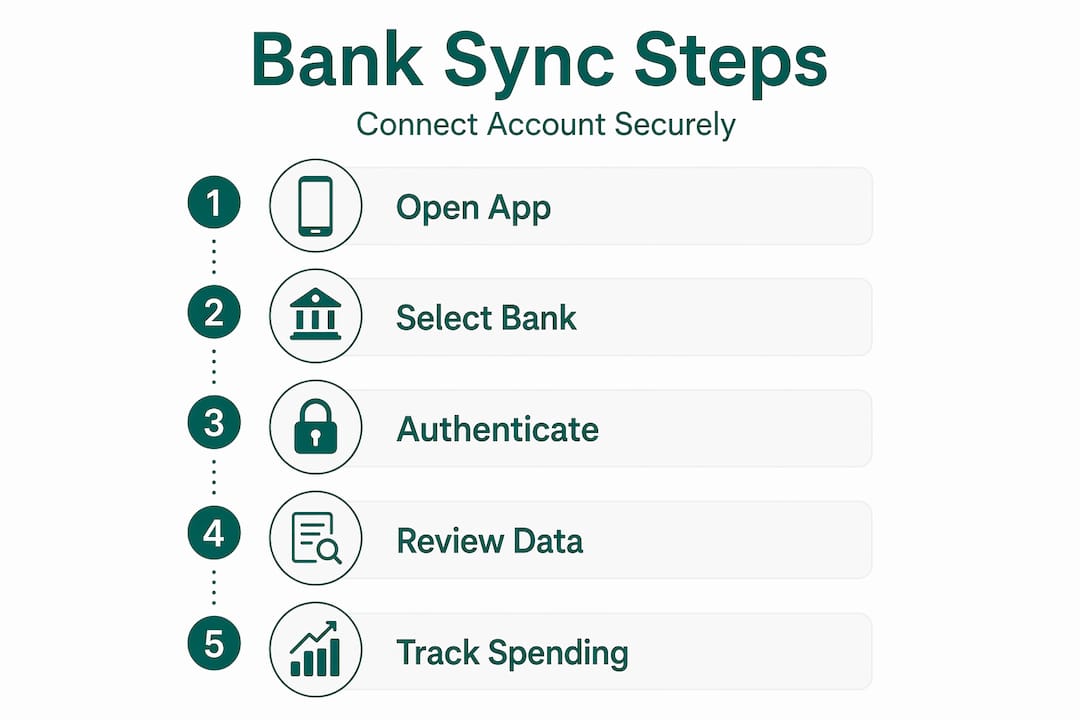
There are two main connection methods to know about. OAuth redirects you to your bank’s own login page, and the app receives a token instead of your actual password. Credential-based flows collect your login details and pass them through a secure intermediary. OAuth is more modern and generally preferred.
Pro Tip: Before linking accounts, read the app’s privacy policy to confirm they do not sell your financial data to third parties. If the policy is vague or missing, that’s a red flag worth taking seriously.
| Preparation step | Why it matters |
|---|---|
| Enable MFA on your bank account | Adds a second layer of protection against unauthorized access |
| Use a strong, unique password | Reduces risk if any linked service experiences a breach |
| Choose an OAuth-enabled app | Your credentials stay with your bank, not the budgeting app |
| Check bank compatibility | Not all banks are supported by every aggregator |
| Review app privacy policy | Confirms your data won’t be sold or misused |
How to connect your bank account to a budgeting app
Once you’re prepared, the actual connection process is straightforward. The steps below reflect how most well-built financial tracking apps handle the flow, whether you’re using a full-featured budget planner app or a focused expense tracker.
-
Download and create your account. Choose a budgeting app with bank sync capability. Open the app and complete the registration process using a secure email address and a strong password.
-
Find the bank connection feature. Most apps place this in a section labeled “Accounts,” “Linked Accounts,” or “Add Account.” Look in the main menu or your profile settings.
-
Select your bank. The app will display a search field where you type your bank’s name. If it doesn’t appear, check whether your institution is supported by the aggregator the app uses.
-
Authenticate through your bank. With OAuth, you’ll be redirected to your bank’s official login page. Enter your credentials there, not inside the app. With a credential-based flow, you enter your login details in the app’s interface and they’re passed through the aggregator. QuickBooks users log into their bank website directly to authorize account access, which is the same principle.
-
Select which accounts to link. After authentication, you’ll typically see a list of your available accounts. Choose only the ones relevant to your budget: checking, savings, and any credit cards you want to track.
-
Authorize the connection. Confirm the permissions the app is requesting. Most apps request read-only access, which means they can view transactions but cannot move money.
-
Wait for the initial sync. The app will pull your recent transaction history. Apps can sync up to 24 months of historical data, giving you an immediate picture of your past spending patterns.
-
Review the imported data. Once the sync completes, browse the transactions to confirm they look correct. Check that account balances match what your bank shows.
Pro Tip: If you connect a joint account, confirm with your co-account holder before sharing that data with a budgeting app. For households sharing a budget, look for apps that support shared family budgeting natively rather than workarounds.
Bank sync performance varies by institution and the aggregator your app uses. If your bank isn’t a major national institution, expect some trial and error before the connection holds reliably.
How bank sync improves your budgeting and financial tracking
Connecting your bank account to a budgeting app is not just a convenience feature. It fundamentally changes how you interact with your finances, and the difference is felt almost immediately.
The most obvious benefit is real-time transaction visibility. Instead of waiting for a monthly statement, you see purchases appear within 24 hours. This immediacy makes it much harder to ignore small spending habits that add up over time. The benefits of tracking expenses with connected apps include automatic categorization, which saves significant time and surfaces patterns you might not notice manually.
Here’s what typically becomes available once you connect your bank account to a finance app:
- Automatic transaction categorization (groceries, dining, utilities, transportation)
- Visual dashboards showing spending by category and time period
- Cash flow summaries comparing income against outflows
- Progress tracking toward savings goals
- Alerts for bill due dates and unusual charges
The apps that do this best go a step further. PocketGuard, for example, calculates your “Leftover” money after accounting for bills, subscriptions, and savings targets in real time. That single number tells you what you can actually spend today without breaking your budget. Some apps, like Origin, sync banks, credit cards, and investments together for a complete financial picture that extends beyond budgeting into tax and estate planning.
| Feature | Without bank sync | With bank sync |
|---|---|---|
| Transaction entry | Manual, time-consuming | Automatic, near real-time |
| Spending categories | User-defined, often incomplete | AI-assisted, auto-populated |
| Budget accuracy | Depends on user memory | Based on actual bank data |
| Historical insights | Limited to what you record | Up to 24 months of history |
| Savings goal tracking | Manual calculation | Auto-updated against balance |
For Muslim families specifically, automated categorization becomes particularly valuable when the app recognizes halal-aware spending categories rather than forcing transactions into generic buckets that don’t reflect how your household actually operates.
Troubleshooting connection issues and ongoing security
Even a well-set-up connection can run into problems. The good news is that most issues are fixable in a few minutes once you know what to look for.
Most bank sync problems come from incorrect credentials or selecting the wrong account during setup. Before assuming the app is broken, confirm your bank login works directly on your bank’s website. If your bank recently required a password reset, you’ll need to update those credentials in the app as well.
Common issues and how to address them:
- Connection drops: Re-authenticate by going to the app’s account settings and selecting “Reconnect.” This often happens after a bank system update.
- Transactions not syncing: Manually trigger a refresh. Most apps have a “Sync Now” or “Refresh” button. If it fails repeatedly, remove the account and reconnect it.
- Duplicate transactions: This usually happens when you accidentally link the same account twice or after a reconnect. Delete the duplicates from your transaction list.
- Wrong account linked: Disconnect the account and repeat the connection process, paying close attention to the account selection step.
For ongoing security, Plaid offers a consumer portal where you can see every app currently connected to your bank data and revoke access from any you no longer use. This is something worth checking every few months, not just when you notice a problem.
Pro Tip: Always connect to your bank through a budgeting app on a private, secured network. If you notice unfamiliar transactions after connecting a new app, disconnect the app immediately and contact your bank.
Security with bank-connected apps is less about the technology and more about your habits. The aggregator does the technical work. Your job is to review access regularly, use strong credentials, and never reuse passwords across financial services.
Do’s and don’ts for connected budgeting apps:
- Do use a unique password for each financial app
- Do enable MFA on both your bank account and your budgeting app
- Do review connected apps every 90 days
- Don’t connect your bank on a public or shared device
- Don’t ignore security notifications from your bank
- Don’t grant account access to apps with no clear privacy policy
Verifying data and getting the most from your app
Connecting your bank is the setup. Actually using the data is where the real value lives.
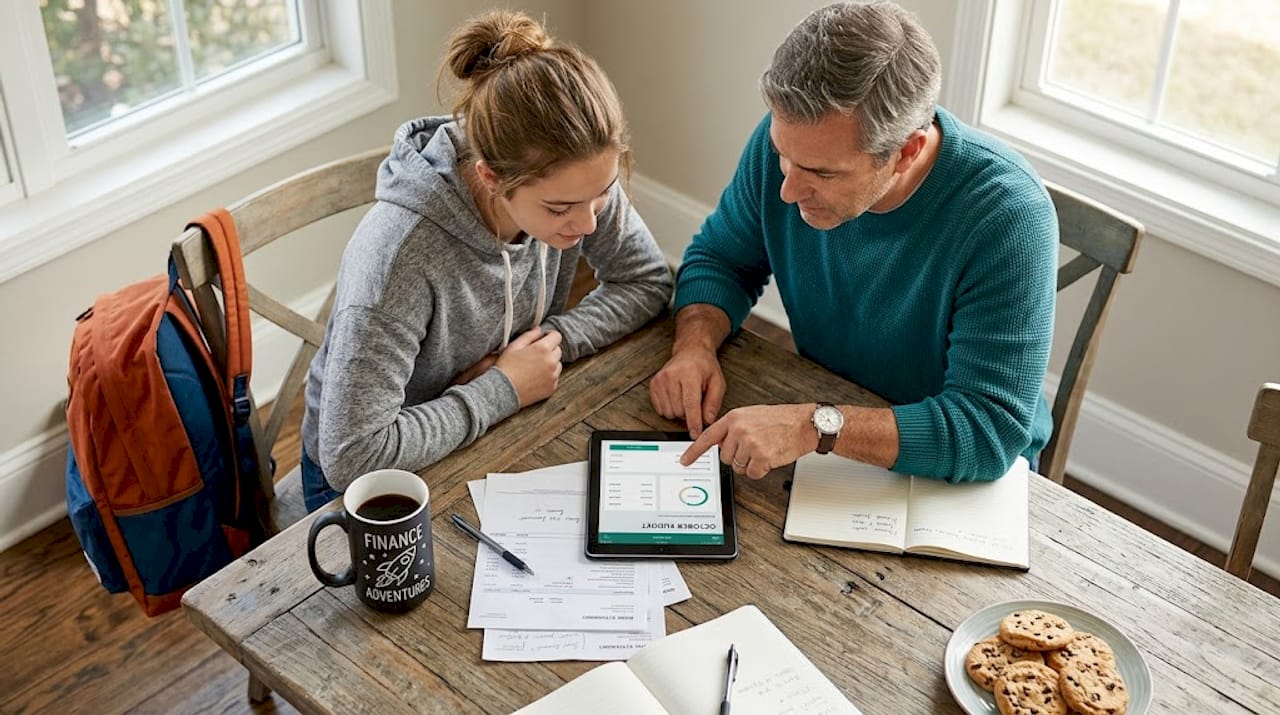
After the initial sync, spend 15 minutes reviewing every imported transaction. Check that categories are correct. Grocery runs should show as groceries, not “general merchandise.” Recurring subscriptions should be tagged consistently so you can see exactly how much you’re spending on digital services each month.
Once your data is clean, lean into these features to build better financial habits:
- Spending alerts: Set a monthly limit for discretionary categories like dining or entertainment. The app notifies you before you go over, not after.
- Bill tracking: Most automated budgeting solutions detect recurring charges and remind you before they hit, which helps avoid overdrafts.
- Savings goals: Assign a portion of your income to specific goals, whether that’s an emergency fund, Hajj savings, or education costs. The app tracks progress automatically against your bank balance.
- Monthly reports: Review your spending summary at the end of each month. Look for categories that consistently exceed your planned amount and adjust accordingly.
- Safe disconnection: If you ever want to remove a linked account, do it from both the app’s settings and the Plaid Portal. This fully terminates data sharing.
For households managing finances together, sharing access through a family spending tracking app means both partners see the same real-time data. That transparency removes a significant source of financial friction in households.
My honest take on bank-connected budgeting apps
When I first connected my bank account to a budgeting app, my biggest hesitation was security. I kept wondering whether giving any app access to my financial data was genuinely safe. What changed my thinking wasn’t marketing copy. It was understanding that Plaid’s OAuth model means the app never actually sees my bank password. It receives a token. That distinction matters.
What I’ve observed over years of writing about personal finance tools is that most people who try bank sync budgeting apps and give up do so because they connected the account and then did nothing else. The connection itself doesn’t budget for you. It gives you accurate data to make decisions with. That shift in understanding, from “the app does the work” to “the app gives me the information I need to do the work,” is what separates people who find these tools life-changing from those who delete the app after two weeks.
My advice is direct: use an app that connects through Plaid or a similarly audited aggregator, enable MFA everywhere, and build a habit of reviewing your transactions once a week. For Muslim families, the additional layer of choosing an app designed around your values, one that reflects your actual spending categories and financial goals, makes the habit much easier to sustain long term.
— Imran
Manage your finances with values at the center
If you’ve been looking for a budgeting app that does more than just track numbers, Amanahfund was built for exactly that purpose. Amanah Budget connects your bank accounts securely through Plaid, auto-categorizes transactions with halal-aware labels, and helps your household save intentionally for goals like Hajj, Umrah, Ramadan, and education.
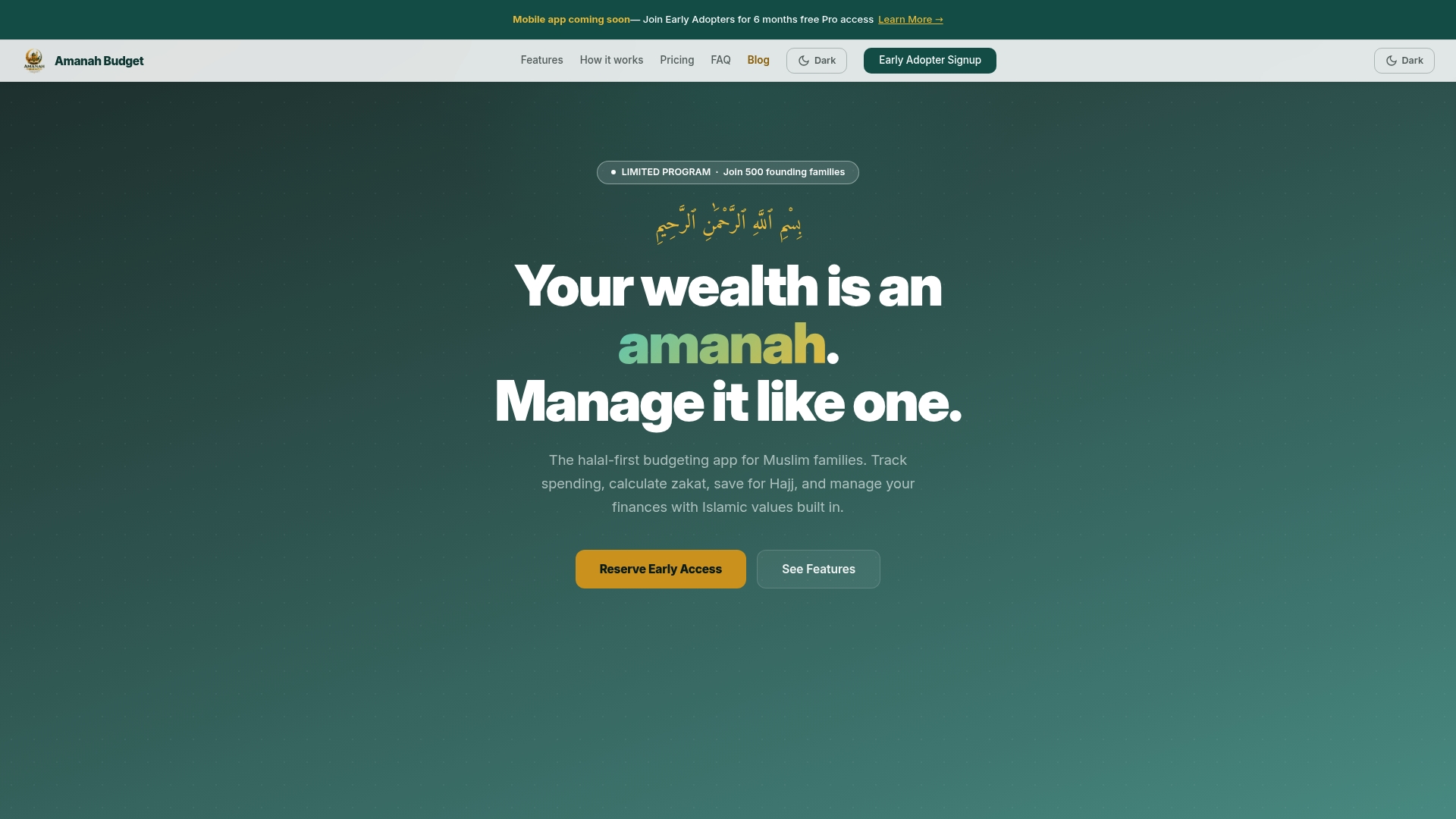
Unlike generic money management apps, Amanah Budget was built by Muslims, for Muslim families. There are no ads, no data sales, and no interest-based product recommendations. Every feature reflects the values of the community it serves. If you want a budget planner app that respects both your financial goals and your deen, explore Amanah Budget and see how it can support your household’s financial life.
FAQ
How do I connect a bank account to a budgeting app?
Open the app, go to the “Accounts” or “Linked Accounts” section, search for your bank, and authenticate through your bank’s login page. Most apps use Plaid or a similar aggregator to complete the connection securely.
Is it safe to connect your bank to a budgeting app?
Yes, when the app uses OAuth through a reputable aggregator like Plaid. Plaid uses OAuth and secure tokens so the budgeting app never receives your actual bank password.
Why is my bank account not syncing correctly?
Most sync failures come from outdated credentials or selecting the wrong account during setup. Try reconnecting the account after confirming your bank login works directly on your bank’s website.
Can I see past transactions after connecting my bank?
Yes. Most budgeting apps with bank sync pull up to 24 months of transaction history after the initial connection, giving you an immediate view of your recent spending patterns.
How do I stop a budgeting app from accessing my bank data?
Go to the app’s account settings and remove the linked account. You can also visit the Plaid Portal to revoke access and delete data from any connected apps directly.
Recommended
Ready to manage your amanah?
Track halal spending, calculate zakat, save for Hajj — all in one app. Free forever.
Create Free Account